Technology Assistance Center

Additional Devices in Duo

Adding a second device

In case you leave your primary phone at home, it’s lost, or you get a new phone, you can set up a second device in Duo. To do so:

1) Visit MyMSU Great Falls College or any site that uses Duo and begin to log in.

2) When the Duo prompt appears, click the Other Options link in the middle of the window.
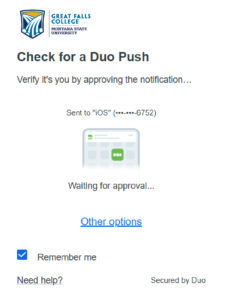
Duo enrollment screen that says check for a duo push, verify it's you by approving the notification, sent to iOS (XXX-XXX-6752), waiting for approval, other options.

3) Click Manage devices.

Duo enrollment screen that says manage devices, add a phone, touch id, and more, first you'll verify your identity.

4) Duo will ask you to authenticate to make sure it’s you. Chose the authentication option you normally use.
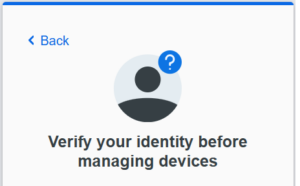
Duo enrollment screen that says verify your identity before managing devices.

5) Click the Add a device button and select the type of device you’d like to add.
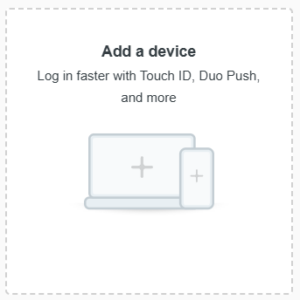
Duo enrollment screen that says add a device. log in faster with touch id, duo push, and more.

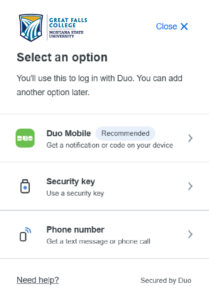
Duo enrollment screen that says select an option, you'll use this to log in with Duo. You can add another option later and then options of duo mobile get a notification or code on your device, security key use a security key, and phone number get a text message or phone call.

6) If you selected another phone, enter the phone number of the device and click Continue. Double check the number on the Is this correct? window, click Yes, it’s correct and then click Continue.
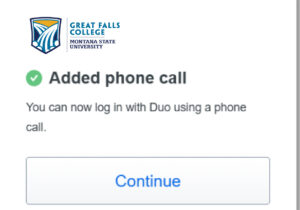
Duo enrollment screen that says added phone call. you can now log in with duo using a phone call.

7) Setup is Complete! You will now see the additional device on the Other options window.
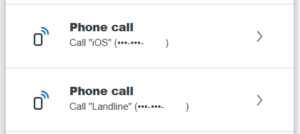
Duo enrollment screen showing choices for Duo authentication of phone call call iOS (XXX-XXX-XXXX) and phone call call landline (XXX-XXX-XXXX)