Technology Assistance Center

Enrolling in Duo

Duo is a form of two-factor authentication that uses an app on a mobile device, phone call, passcode or token to verify the person logging into your account is actually you. Follow the steps below to enroll in Duo.

Duo Enrollment

1) Via a web browser, visit MSU Duo: Enrollment Login.

2) Log in with your NetID and password.
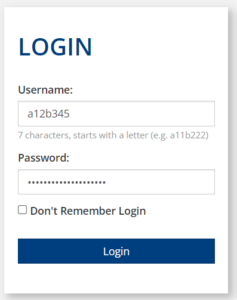
Duo login screen asking for username and password.

3) After logging in, you’ll see your name and email address. Click Submit.
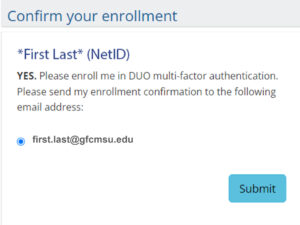
Duo confirm your enrollment window that says "First Last* (NetID). YES. Please enroll me in Duo multi-factor authentication. Please send my enrollment confirmation to the following email address: first.last@gfcmsu.edu.

4) Your enrollment will be confirmed, and an email will be sent to you with a registration link. It may take up to 5 minutes for the email to arrive.
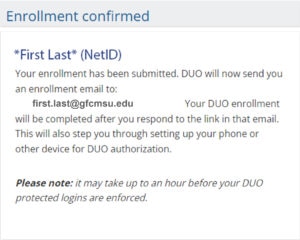
Duo enrollment confirmed screen that says, "*First Last* (NetID). Your enrollment has been submitted Duo will now send you an enrollment email to: first.last@gfcmsu.edu. Your Duo enrollment will be completed after you respond to the link in that email. This will also step you through setting up your phone or other device for Duo authorization. Please note: it may take up to an hour before your Duo protected logins are enforced.

5) Click the link in the email to begin your registration process.
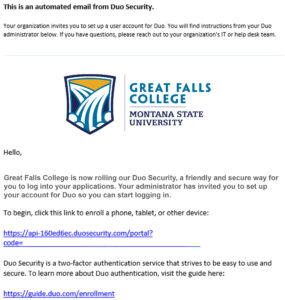
An example of the Duo email that says, this is an automated email from Duo security. Your organization invites you to set up a user account for Duo. You will find instructions from your Duo administrator below. If you have questions, please reach out to your organization's IT or help desk team. Hello, Great Falls College is now rolling out Duo Security, a friendly and secure way for you to log into your applications. Your administrator has invited you to set up your account for Duo so you can start logging in. To begin, click this link to enroll a phone, tablet, or other device: <link here>. Duo Security is a two-factor authentication service that strives to be easy to use and secure. To learn more about Duo authentication, visit the guide here: https://guide.duo.com/enrollment.

6) In the enrollment window, select Mobile phone and click Continue.
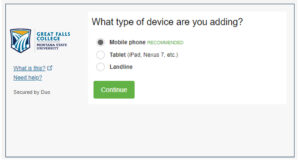
Duo enrollment screen that says What type of device are you adding? Options: mobile phone recommended, tablet, landline.

7) Enter your mobile phone number and click Continue.
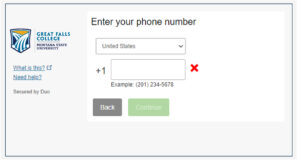
Duo enrollment screen that says Enter your phone number a dropdown box that says United States and a box to enter a phone number.

9) Install the app and then click “I have Duo Mobile installed” to continue.
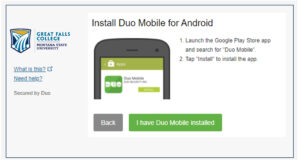
A Duo enrollment screen that says Install Duo mobile for Android. 1. Launch the Google Play Store app and search for "Duo Mobile". 2. Tap "Install" to install the app.

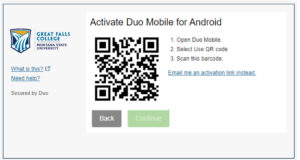
10) Open the Duo Mobile app, click the Use QR Code button, and scan the QR code on the screen.
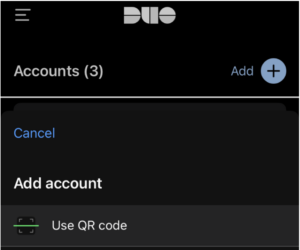
Duo enrollment screen from phone app showing the add account option.

Duo enrollment screen that says Activate Duo mobile for Android. 1. Open Duo mobile. 2. Select use QR code. 3. Scan this barcode. A link that says Email me an activation link instead.

If this is the first account added to Duo, the app will ask you to run through a quick guide/test on how the authentication notifications work and practice how to approve or deny them.

You can set the default notification type after the account is added. Duo Push is the recommended method for authentication requests. This pops up a small notification on your phone to approve/deny a request.
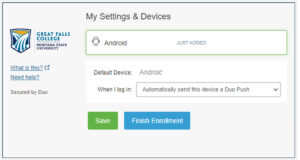
Duo enrollment page that says My settings & Devices. Android just added. Default device Android. When I login, with a dropdown menu that shows Automatically send this device a Duo push.

11) After clicking Finish Enrollment you’ll be enrolled in Duo for Two Factor Authentication.
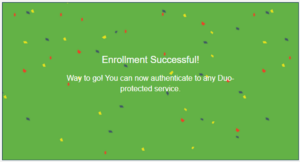
Duo enrollment screen that says "Enrollment successful! Way to go! You can now authenticate to any Duo-protected service."